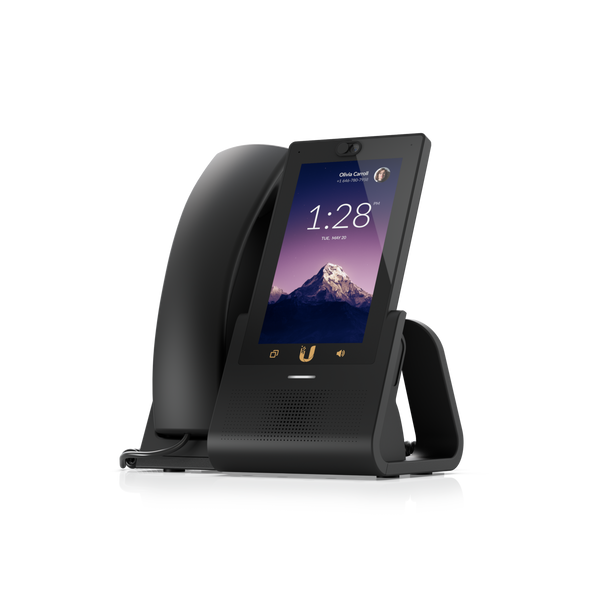
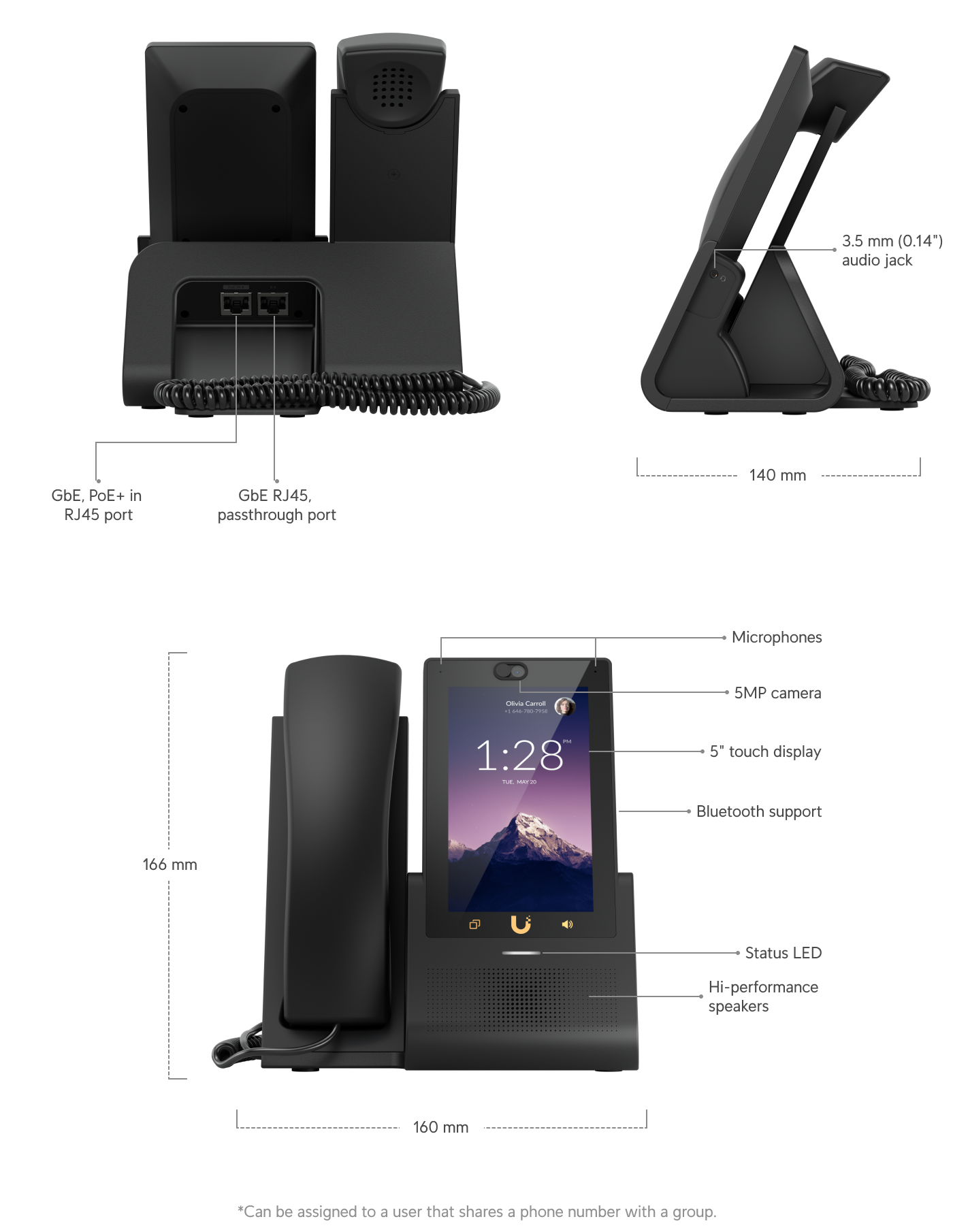
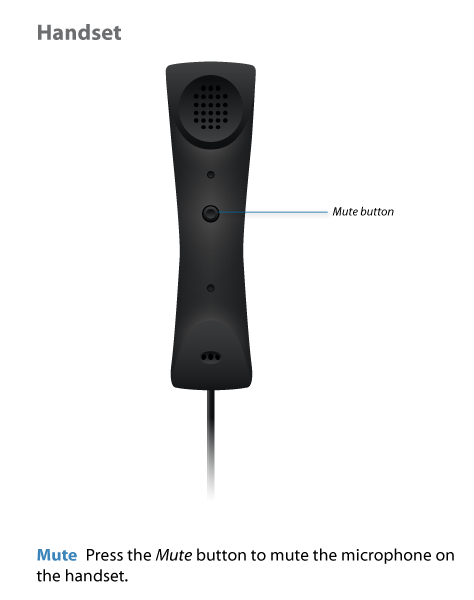
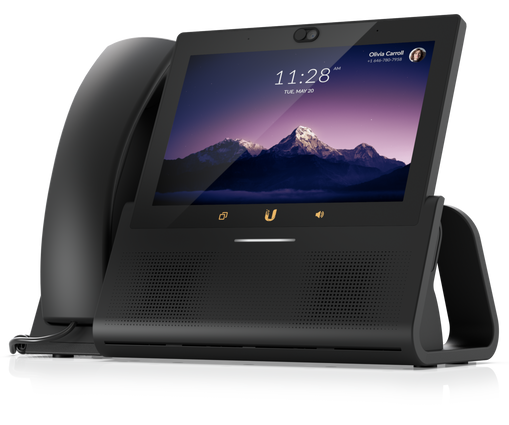
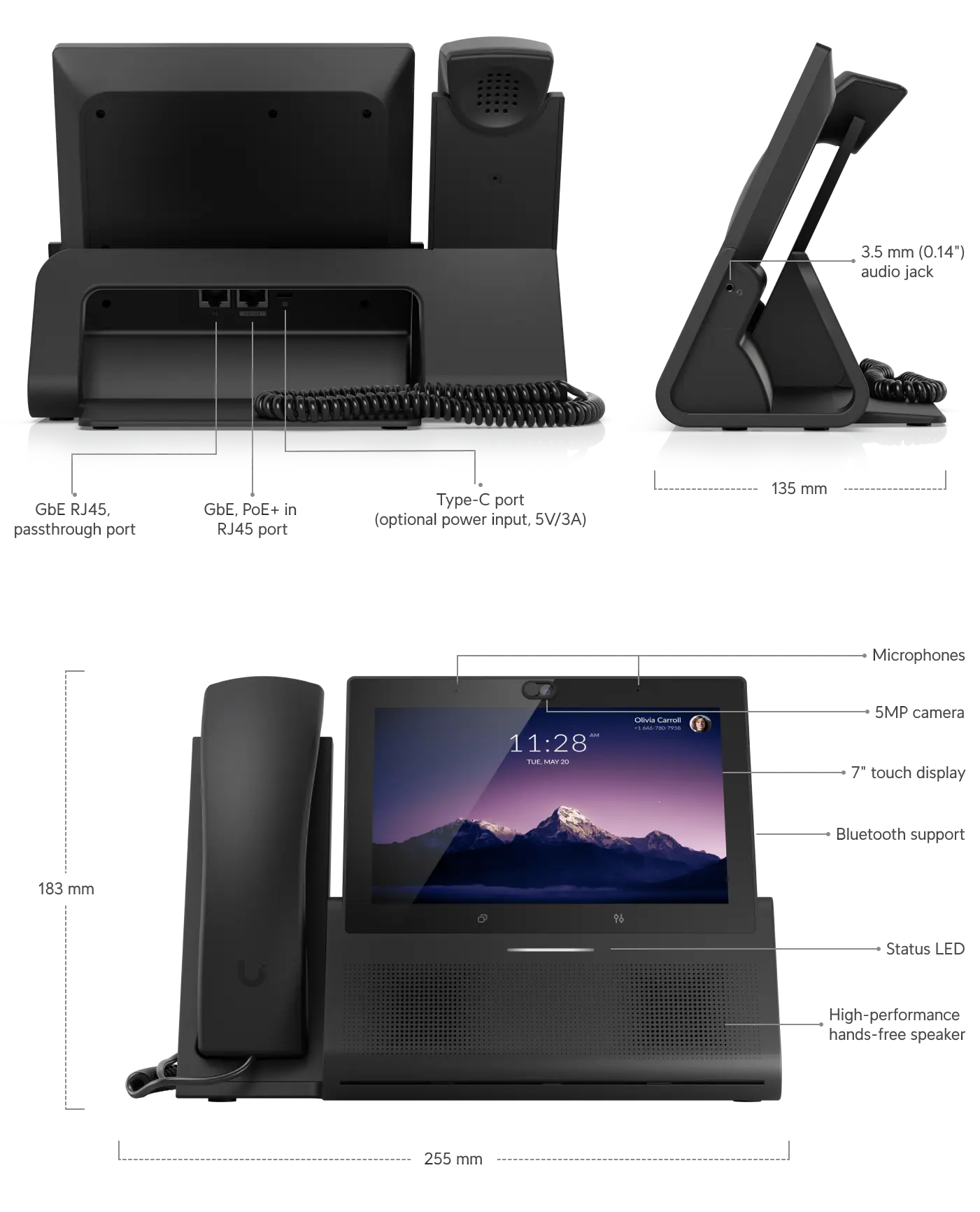
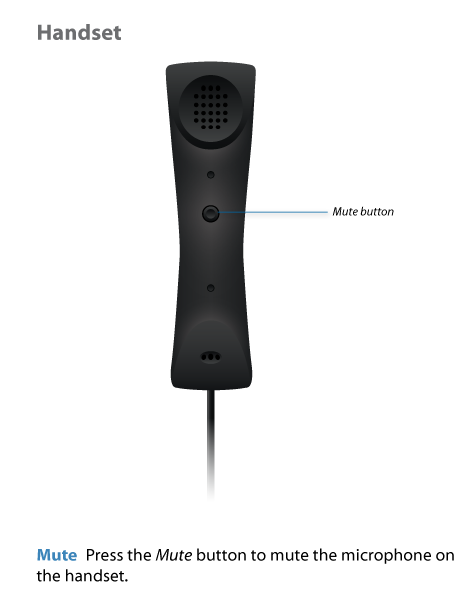
To configure voicemail on the Touch and Touch Max phone:
- From the Keypad, dial *86 or long-press 1 to access voicemail configuration.
- Follow the audio prompts to complete voicemail configuration.
To configure voicemail on the Flex phone:
- Press the MESSAGE button to access voicemail configuration.
- Follow the audio prompts to complete voicemail configuration.
Listening to Voicemail:
To play Voicemail on a Touch Phone:
- Press the Voicemail button.
- Follow the prompts to access and listen to your messages.
To forward an incoming call on the Touch and Touch Max phone:
- From the incoming call screen, press the blue Forward button to view your contact list.
- Select a contact to forward the incoming call.
To start a parallel call (i.e., start a new call while one or more calls are already ongoing) on the Touch and Touch Max phone:
- From the active call screen, press the** Add / Transfer** button.
- There are two options for starting a parallel call:
a. From the Contacts tab of the Add / Transfer screen, select a contact from your contact list.
b. From the Keypad tab of the Add / Transfer screen, dial a number and press the green button at the bottom of the screen. - Press the Call button to start a parallel call. The current active call will be placed on hold.
- When two or more calls are active in parallel, swipe left or right to navigate between active calls..
To transfer an active call on the Touch or Touch Max phone:
- From the active call screen, press the Add / Transfer button.
- There are two options for transferring an active call:
a. From the Contacts tab of the Add / Transfer screen, select a contact from your contact list.
b. From the Keypad tab of the Add / Transfer screen, dial a number and press the green button at the bottom of the screen. - You will have the option to press Transfer or Warm Transfer.
a. If you press the Transfer button, this will utilize a cold (blind) transfer. The active call will immediately be transferred and will ring the destination phone once you press the Transfer button.
b. If you select the Warm Transfer option, the original caller is placed on hold while the transfer destination is dialed. The transfer destination has to pick up, at which point you have to again press the blue transfer button to complete the transfer.
To transfer an active call on the Flex phone:
- While the call is active, press the TRANSFER button.
- From here, you can either transfer to a specific number or a contact.
a. To transfer to a specific number, enter the number you’d like to transfer the call to and press the** DIAL** soft key.
b. To transfer to a contact, press the CONTACT soft key to load your contact list. Navigate the contact list using the up/down keys and dial the desired contact by pressing the DIAL soft key or the OK button. - You’re now calling the transfer destination. Once the transfer destination answers the call, press the TRANSFER button again to connect the original caller with the transfer destination.
Note: The Flex phone utilizes a warm (attended) transfer. The original caller will be placed on hold while a second call is established with the transfer destination. Once the second call is connected, the transfer can be completed to connect the original caller with the transfer destination.
To start a conference call on the Touch and Touch Max phone:
- While the call is active, press the CONF soft key.
- From here, you can either start a call with a specific number or a contact. a.To call a specific number, enter the number you’d like to transfer the call to and press the DIAL soft key. b. To call a contact, press the CONTACT soft key to load your contact list. Navigate the contact list using the up/down keys and dial the desired contact by pressing the DIAL soft key or the OK button.
- You’re now calling the third party. Once the third party answers the call, press the CONF soft key again to start a conference call.
To start a three-way conference call on the Flex phone:
- While the call is active, press the CONF soft key.
- From here, you can either start a call with a specific number or a contact.
a. To call a specific number, enter the number you’d like to transfer the call to and press the DIAL soft key.
b. To call a contact, press the CONTACT soft key to load your contact list. Navigate the contact list using the up/down keys and dial the desired contact by pressing the DIAL soft key or the OK button. - You’re now calling the third party. Once the third party answers the call, press the CONF soft key again to start a conference call.
To start a conference call on the Touch and Touch Max phone:
- Press the App Selector button, located below the phone’s touchscreen to the left of the Ubiquiti logo.
- Select Settings and click on My Status.
- From here, you can select between three status settings:
a. Create a DND Allow List to allow specific numbers to ring your device when your status is set to Do Not Disturb.
a. Specify a redirect number using the Change Redirect Number button on the My Status page.
i. Available: Incoming calls will ring your device.
ii. Do Not Disturb (DND): Incoming calls will be sent to voicemail.
iii. Redirect: Incoming calls will be forwarded to the specified redirect number.
To manage your status on the Flex phone:
- Do Not Disturb (DND): Incoming calls will be sent to voicemail.
a. Press the DND soft key to place your device in Do Not Disturb mode. Incoming calls will go to voicemail. When DND is enabled you will see the word DND with a symbol in the top-left corner of the screen.
b. Press the DND soft key again to disable Do Not Disturb mode. - Redirect: Incoming calls will be forwarded to the specified redirect number.
a. Press the MENU soft key, then select 2. SETTINGS..
b. Use the up/down keys to navigate the settings menu and select 5. CALL FORWARD..
c. Press the YES soft key to set a redirect status.
On the CALL FORWARD NUMBER screen, press the EDIT soft key, enter your redirect number with the keypad, and press the CONFIRM soft key.
On the CALL FORWARD NUMBER screen, press the EDIT soft key, enter your redirect number with the keypad, and press the CONFIRM soft key.
Call Parking: A Better Way to Go on Hold
In a nutshell, parking a call puts someone on hold in a way that allows anyone in your organization to take the call. The old way of putting someone on hold was far more limited. The caller on hold was tied to the callee, which meant that only the person who put someone on hold could take them off. And of course, there’s the old hold-transfer combo, where someone puts a caller on hold and then transfers them to someone else. The call park feature essentially combines both things into one.
There are other benefits, too. Once a call is parked, you’re free to make and receive calls without worrying about the person who’s parked. It’s also possible to park multiple calls, unlike regular old phone systems that can only have one call on hold at a time.
When you park a call, the call is assigned its own extension. Anyone with the extension can pick up the call. It also shows up under recent calls on the phone.
I have setup 2 Parking lots 100 & 200 I can setup more if you need them.
Paging a Group
1. From your Talk phone:
- a. Open Contacts on the Talk phone.
- b. Find the group you want to page.
- c. Tap and hold the group, then tap the Page button.
2. From other phones adopted to UniFi Talk:
- a. Dial *0*, followed by the group’s extension.
Number porting is a complex process that requires significant coordination between our upstream provider and your current carrier. Porting numbers to UniFi Talk typically takes 2-4 weeks. However, this may extend if the request is temporarily rejected by the carriers involved due to incorrect or missing information, or if they are slow to take action. There are no fees to port numbers to or from UniFi Talk. When submitting a request, you will be required to upload your latest monthly bill from your current carrier which lists the numbers to be ported. Alternatively, you can provide a receipt of number purchase and/or a screenshot of your account portal with the numbers listed.Once your request is submitted, your dedicated porting manager will contact you to provide updates on progress and assist in resolving any temporary rejections.Due to the complexity of porting and the many parties involved, we cannot guarantee that your numbers will transfer on a specific date until the carriers involved agree on a scheduled porting date. Additionally, once your numbers are scheduled to port, we cannot guarantee that the scheduled date can be changed, or that porting can be canceled, though we will make every effort to provided we receive 48 business hours of advance notice.Our team will work closely with the carriers involved and make every effort to provide you with a seamless porting experience.
Signtech will take of this with unifi. you just need to provide us with the paperwork requested by unifi.